How to Install LAMP (Linux, Apache2, MySQL, PHP) & phpMyAdmin on Ubuntu 24.04 (Noble Numbat)

Introduction:

The LAMP stack is an open-source platform used in web development that combines Linux with Apache server software and the MySQL database along with the PHP programming language, for creating dynamic web applications seamlessly. LAMP Server involves installation and configuration of the Linux operating system, Apache Server, MySQL database, and PHP working together.

phpMyAdmin is widely used to handle MySQL databases on Ubuntu systems. It offers a user-friendly web interface for tasks like creating and managing databases, tables, and records manipulation. The process of installing phpMyAdmin on Ubuntu involves updating the package index first followed by installing the software itself and configuring the web server to ensure security measures are in place. This integration streamlines the management of databases for users who may not be very familiar, with command-line operations.

Prerequisites:
Before you begin, make sure you have the following ready:
  1. Ubuntu 24.04 LTS (Noble Numbat)
  2. A sudo user is configured on the instance.
  3. Access to a terminal/command line

Minimum System Requirement:

  1. 1 GHz CPU (dual-core recommended for better performance)
  2. 512 MB (1 GB recommended) RAM
  3. 10 GB (more if you plan to store a lot of data) HardDisk

How to install LAMP & phpmyadmin on Ubuntu 24.04 LTS (Noble Numbat)
Linux – An open-source, stable, secure, and highly flexible Operating system that is widely used in both servers and             development space.
MySQL – A widely used open-source relational database management system for online web applications that stores and               manages data. MariaDB is progressively increasing in reputation as it has more and even more been used as a viable               alternative.
Apache – a very popular open-source web server software, which completes the task of delivering content over your website                to end users surfing the internet.

PHP – A server-side scripting language for web development that allows dynamic content and database interactions.

phpMyAdmin – phpMyAdmin is a free and open-source web-based tool written in PHP that helps you manage MySQL                         databases, offering an easy way to work with the SQL commands upstream for creating, editing, or deleting                         content.

Step 1 - Install Apache:

Apache HTTP Server operates as the web server within the LAMP stack on Linux. It handles HTTP requests and facilitates the transfer of data over the Internet.

First login to the system using SSH

  1. Ensure that your package manager is up to date before you start installing the LAMP stack.

sudo apt update -y && sudo apt upgrade -y

      2. To install Apache

sudo apt install apache2 -y

      3. Start and enable Apache to start at boot

sudo systemctl start apache2
sudo systemctl enable apache2

     4. Check Apache status

sudo systemctl status apache2

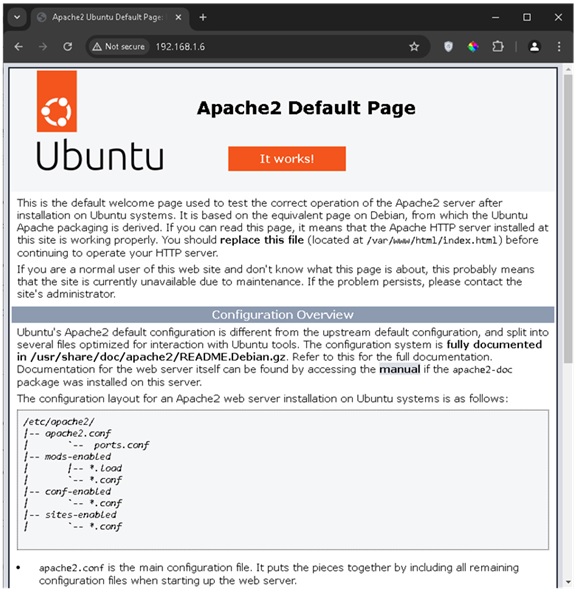
You can now verify that Apache is working by opening your browser and navigating to `http://your_server_ip`. You should see the default Apache web page.

Step 2 - Install MySQL:

     1. To install MySQL server.

sudo apt install mysql-server -y

     2. Start and enable MySQL

sudo systemctl start mysql
sudo systemctl enable mysql

     3. Check MySQL status

sudo systemctl status mysql

     4. Verify that MySQL working by login in to it

sudo mysql
Step 3 - Install PHP:
  1. To install PHP

sudo apt install php8.3 php8.3-cli php8.3-{bz2,curl,mbstring,intl} –y
  • php 8.3 : Installs PHP version 8.3.
  • php 8.3-cli : Installs the PHP command-line interface.
  • php 8.3-{bz2,curl,mbstring,intl} : Installs additional PHP extensions needed for web applications.

     2. Check PHP version

php -v

     3. Test PHP with Apache

To verify that PHP is working with Apache, create a simple `info.php` file in Apache’s default web root directory:

sudo vi /var/www/html/info.php

Add the following content to the file:

<?php phpinfo(); ?>

Save and exit the editor

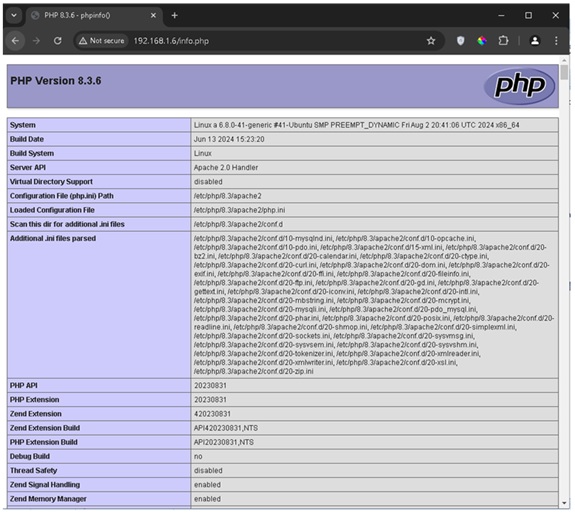
Now, visit `http://your_server_ip/info.php` in your browser. You should see a page showing detailed PHP information.

Step 4 - Install phpMyAdmin (optional)
  1. To install phpmyadmin

sudo apt install phpmyadmin

During the installation, select Apache as the webserver to automatically configure it, and set up a database for phpMyAdmin.

Type Y for yes

Type yes to configure a database for phpmyadmin

Use Strong Password for phpmyadmin to register with the database server and use it as a login password.

Choose 1 for apache2.

     2. Restart Apache

sudo systemctl restart apache2

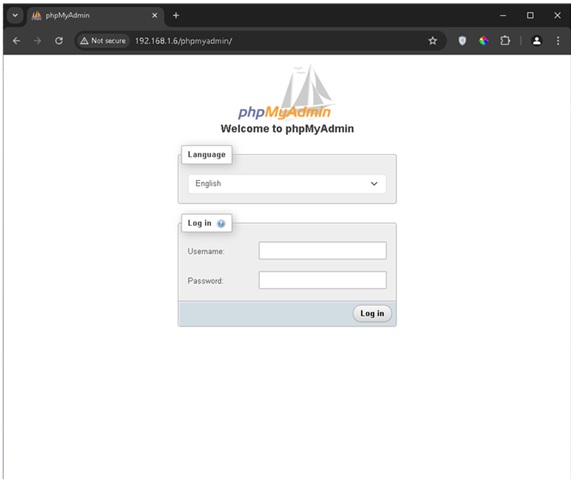
You can now verify that phpmyadimin is working by opening your browser and navigating to `http://your_server_ip/phpmyadmin`. The username is phpmyadmin and the password is what you set in the previous steps

Conclusion:

In conclusion, the installation of a LAMP server on Ubuntu 24.04 involves setting up four core components: Apache as the web server, MySQL as the database management system, and PHP as the scripting language to create dynamic web content. By following the outlined steps, you ensure that your server is properly configured to handle web applications, interact with databases, and serve PHP-driven websites. Optional tools like phpMyAdmin can enhance database management via a user-friendly interface. With the LAMP stack installed, your Ubuntu server is now ready for web development and deployment.